
How to Choose the Right Computer for Your Needs
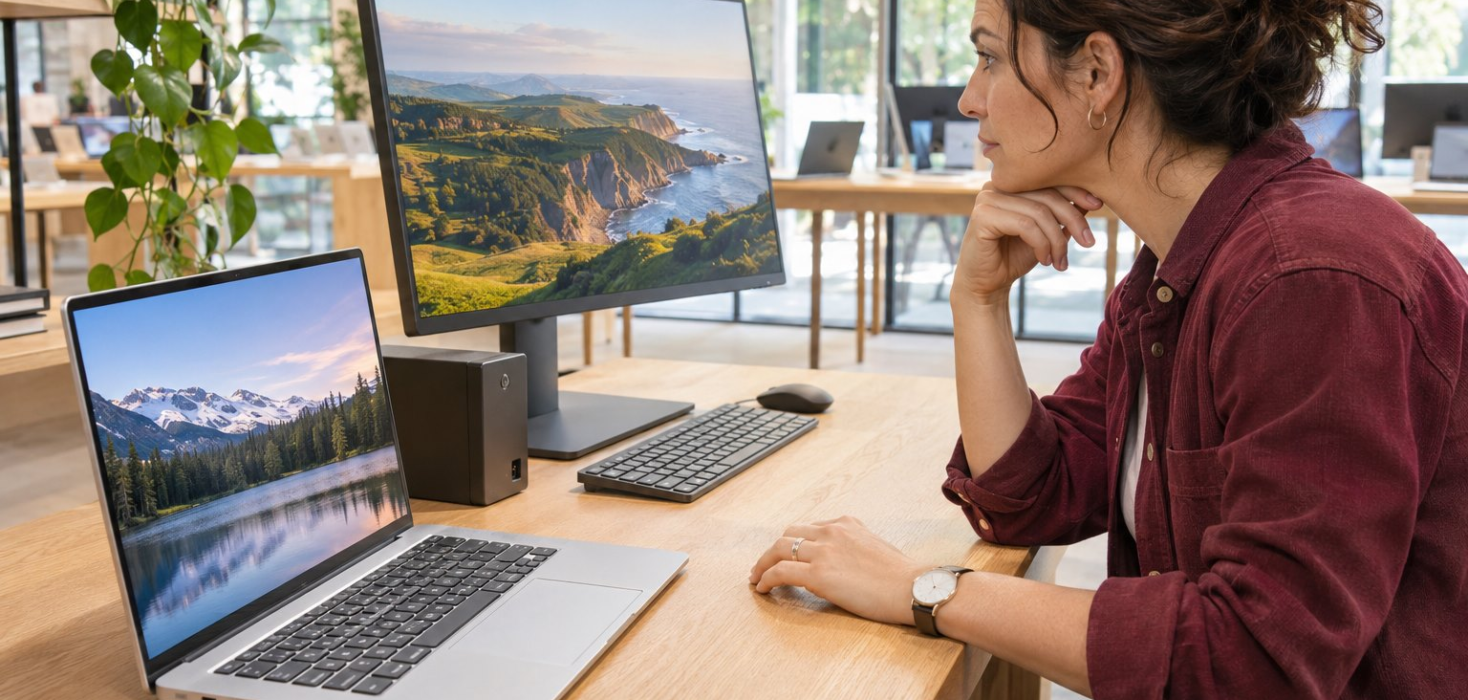
Buying a computer is an investment in your productivity, education, business or entertainment. However, with hundreds of available models and increasingly complex technical specifications, choosing the right computer can be challenging.
The most expensive computer is not necessarily the best computer for you. The right computer is one that delivers the performance, reliability, compatibility and flexibility required for your activities without making you pay for capabilities you will rarely use.
At ACTS, we believe informed customers make better technology investments. This guide will help you understand what to look for before purchasing your next computer.
1. Identify what you will use your computer for
Before comparing processors, memory or graphics cards, identify the tasks you expect your computer to perform.
| Primary activity | Recommended RAM | Suggested storage | Graphics requirements |
|---|---|---|---|
| Internet and everyday tasks | 8–16 GB | 256–512 GB SSD | Integrated graphics |
| Education and online learning | 16 GB | 512 GB SSD | Integrated graphics |
| Office and business productivity | 16–32 GB | 512 GB–1 TB SSD | Integrated graphics |
| Programming | 16–32 GB | 512 GB–1 TB SSD | Workload dependent |
| Graphic design | 16–32 GB | 1 TB SSD | Workload dependent |
| Gaming | 16–32 GB | 1–2 TB SSD | Dedicated GPU often recommended |
| Architecture and engineering | 32–64 GB | 1–2 TB SSD | Dedicated GPU often recommended |
| Video editing | 32–64 GB | 1–2 TB SSD or more | Dedicated GPU often beneficial |
| Local AI development | 32–64 GB or more | 1–2 TB SSD or more | Compatible accelerator with sufficient memory |
These are general recommendations rather than minimum requirements for every application. Specialized software may require different configurations.
2. Laptop, desktop or workstation?
Laptop computers
Ideal for students, mobile professionals, remote workers and people who need to work from multiple locations. Consider battery life, weight, screen quality and charging options.
Desktop computers
Excellent for permanent offices, home workspaces and gaming. Desktops generally offer greater flexibility for upgrades, cooling and component replacement.
Workstations
Designed for demanding professional applications, including engineering, architecture, rendering, scientific computing and advanced content creation.
All-in-one computers
Combine the computer and display in one enclosure, reducing cable clutter and saving desk space. Upgrade and repair options may be more limited.
Mini PCs
Compact computers suitable for many office, educational, digital signage and home entertainment applications.
3. Choose the right processor
The processor, commonly called the CPU, executes instructions and influences how quickly your computer performs many everyday and professional tasks.
Mainstream processor families include Intel Core, Intel Core Ultra, AMD Ryzen, Apple M-series and Qualcomm Snapdragon X.
When comparing processors, consider the exact model, generation, core configuration, power consumption and independent performance benchmarks.
A newer midrange processor can outperform an older premium processor. Similarly, laptop processors may perform differently from desktop processors with comparable branding. Do not make your purchasing decision based solely on an Intel Core i7 or AMD Ryzen 7 label. Check operating system and application compatibility, particularly for ARM-based systems.
4. Select enough memory
RAM allows your computer to keep applications and active data readily accessible.
- 8 GB: Basic browsing and light productivity.
- 16 GB: General productivity, education and multitasking.
- 32 GB: Professional applications and heavier multitasking.
- 64 GB or more: Demanding workstations and specialized workloads.
For most new general-purpose computers, 16 GB is a practical starting point. Consider 32 GB or more if you frequently run demanding applications, virtual machines or large projects.
Check whether memory can be upgraded after purchase. Some computers use soldered or integrated memory that cannot be expanded.
5. Understand storage requirements
A solid-state drive, or SSD, generally provides faster application loading, file access and system startup than a traditional mechanical hard drive.
| Storage capacity | Typical use |
|---|---|
| 256 GB | Basic computing with limited local files |
| 512 GB | Everyday use, education and office work |
| 1 TB | Professional applications, games and media |
| 2 TB or more | Large projects, video production and extensive data |
NVMe SSDs generally provide higher transfer speeds than SATA SSDs, although actual performance depends on the drive, interface and workload.
External drives and cloud storage can complement internal storage, but important files should always have a separate backup.
6. Determine whether you need a graphics card
Integrated graphics are sufficient for many everyday activities, including web browsing, office applications, video playback and basic photo editing.
A dedicated graphics processing unit may be beneficial for:
- Gaming and virtual reality.
- Three-dimensional modeling and rendering.
- Professional video production.
- Engineering and visualization.
- GPU-accelerated scientific computing.
- Local artificial intelligence development.
Always verify compatibility with the software you intend to use before choosing a graphics card.
7. Evaluate screen quality and connectivity
A computer should be comfortable and practical to use throughout the day. Consider screen size, resolution, brightness, color accuracy, keyboard comfort, webcam quality, Wi-Fi capabilities and available ports.
Business users should also evaluate docking station compatibility, external monitor support, security features and warranty coverage.
Creative professionals may benefit more from an accurate display than from purchasing a processor upgrade they do not need.
8. Consider the total cost of ownership
The purchase price is only one part of your technology investment. Additional considerations include software licenses, accessories, maintenance, electricity consumption, repairs, warranty services and potential future upgrades.
Purchasing a balanced computer that meets your expected requirements for several years can be more economical than repeatedly replacing underpowered equipment.
Frequently asked questions
Is 8 GB of RAM enough?
It can be sufficient for light computing, but 16 GB generally offers greater flexibility for modern applications and multitasking.
Is a desktop better than a laptop?
Neither is universally better. Desktops generally provide greater upgrade flexibility, while laptops provide portability.
Do I need a dedicated graphics card?
Not necessarily. Integrated graphics are suitable for many everyday and business tasks. Dedicated graphics become more important for demanding graphical and computational workloads.
Should I buy the newest processor?
Not automatically. Compare performance, software compatibility, reliability and overall value rather than generation alone.
How long should a computer last?
A well-maintained computer may remain useful for several years. Its practical lifespan depends on hardware quality, workload, repairability and operating system support.
Find the right computer with ACTS
Whether you are purchasing your first laptop, upgrading your business computers or selecting a professional workstation, ACTS can help you identify technology that matches your requirements.
ACTS regularly reviews and updates its product selection. Visit our website frequently to discover updated technology options and purchasing recommendations.
Explore computers and technology solutions at callACTS.com. Contact ACTS if you need assistance selecting the right configuration.
For more purchasing advice, read our Black Friday Technology Buying Guide.