
Understanding Computer Specifications: CPU, RAM, Storage, GPU and Displays
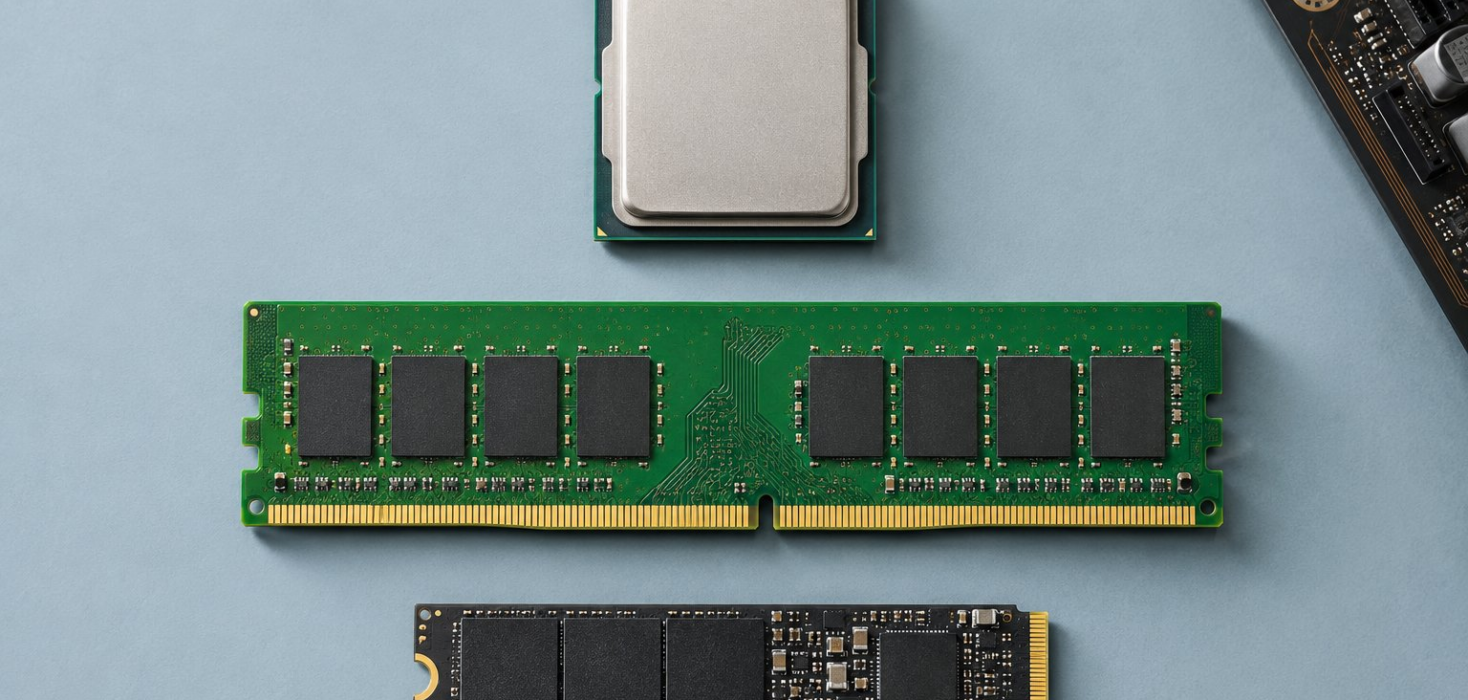
A computer specification sheet tells you what is inside the machine. Its value is in how well those parts work together for your applications. Start with your operating system, the software versions you need and an example of a large project you expect to run.
CPU: compare the exact processor
The CPU handles general computation, from opening applications to running many spreadsheet, programming and design tasks. Compare the full processor model and look for tests of the application you use. Some workloads benefit from many cores, while others are sensitive to how quickly a single task runs. In a laptop, cooling and power settings can also influence performance during long jobs.
RAM and storage: two different limits
RAM holds the work you have open. Compare the memory used while your usual browser tabs, applications and files are running together. Check whether the memory is replaceable or soldered before choosing a configuration.
Storage holds applications and files after shutdown. Size the SSD for your software, active projects and working space for updates or temporary files. Compare usable capacity and supported drive upgrades. A second copy on an external drive or a managed backup service protects work that would otherwise exist in only one place.
GPU and display: check both ends
Integrated graphics can handle many office, classroom and video tasks. For rendering, gaming or accelerated AI, check the application’s supported GPU back end and video memory requirements. For the display, compare resolution, scaling, brightness and viewing comfort. Color-managed work also calls for the color coverage and calibration your workflow requires.
The Acer Vero B247Y G monitor is a production catalog example for checking display size and resolution. Before buying any monitor, compare its video inputs with the outputs on your computer or dock and verify the refresh rate at the resolution you plan to use.
A checklist for comparing two configurations
- Write down the exact model and configuration of each computer.
- Check the software vendor’s requirements for your actual applications and versions.
- Compare memory and storage upgrades, ports and external display support.
- Confirm warranty terms and the accessories needed to make the system usable.
For help choosing the form factor and budget, read How to Choose the Right Computer for Your Needs.